

The safest way to start with Spotify Xirp is to treat it as an operator console, not an autonomous permission system. Install and authenticate a supported native coding agent first, add one non-sensitive Git repository, launch one narrowly scoped task in a new worktree, and review the diff before you scale to parallel sessions or connect Spotify Portal.
This walkthrough follows Spotify’s public beta documentation checked on August 11, 2026. It is intentionally documentation-based: I am not claiming private beta access or inventing buttons that Spotify has not shown publicly. For the product boundary, supported features, and current limits, begin with my complete Spotify Xirp explainer.
What you need before installing Xirp
- A Mac: Windows and Linux are not supported during the current beta.
- A work email: Spotify’s FAQ says personal Gmail, Yahoo, Outlook.com, and similar addresses are not accepted.
- At least one supported coding-agent account: Claude Code, OpenAI Codex, or Gemini CLI.
- The native agent CLI: install and sign into it using that provider’s official documentation before troubleshooting Xirp.
- A local folder: any folder can be a project, but Git and worktree features require an eligible Git repository.
- Optional Portal access: Spotify Portal is not required for local projects or sessions.
Xirp checks the Mac for supporting tools and may surface guidance when software such as tmux or the GitHub CLI (gh) is missing. Follow each tool’s official installer rather than copying an unverified shell command. The official Getting Started guide is the source of truth for the beta’s prerequisites and current install flow.
Choose your Xirp operating model first
| Mode | Use it for | Important limit |
|---|---|---|
| General session | Agent conversation or terminal work without a registered project | No project-specific repository/worktree context |
| Non-Git project | Working in a local folder with files, rules, and skills | No Git branch/worktree controls |
| Single Git repository | The complete Xirp project, Git, diff, and worktree workflow | Still governed by the native agent’s permissions |
| Parent folder with several repositories | Agent work across child repositories | Repository-level Git/worktree controls are limited |
| Portal Workspace launch | A repository task that should start with shared catalog and Workspace context | Requires Portal connection, Workspace membership, and an eligible catalog component/source repository |
For a first evaluation, use one single-repository project. It exercises Xirp’s most important local mechanics without introducing the additional identity, catalog, MCP, and transcript-sharing decisions that come with Portal.
What the main Xirp terms mean
Project means the registered local folder used as a working directory. Session means a persistent terminal process running one coding agent. Worktree means a separate Git checkout and branch that can isolate a write task from the main checkout. Workspace means the optional shared context container in Spotify Portal; it is not the same thing as a local Xirp project.
Step 1: Join the beta and install the Mac app
- Open the official Xirp product page and choose Join the beta.
- On the Get Xirp page, choose Download for Mac.
- Open the downloaded installer and move Xirp to Applications when prompted.
- Start Xirp. If macOS asks whether to open an application downloaded from the internet, review the publisher and prompt before selecting Open.
Do not bypass a macOS security warning through unsupported commands. A normal downloaded-application confirmation is different from an invalid signature, damaged application warning, or endpoint-security block; unexpected warnings belong with Spotify support or your organization’s endpoint team.
Step 2: Create or sign into the Xirp account
The first screen asks you to sign in or sign up for a Spotify Technology account. You can create that account inside the app; Spotify says you do not need to create it before downloading. Remember that this Xirp sign-in and a later Portal authorization are separate. Connecting Portal may therefore involve two authentication states even when the same person uses both.
Step 3: Verify the native coding agent outside Xirp
Before blaming Xirp for an unavailable agent, confirm the native CLI can start and authenticate on the same Mac. Xirp auto-detects supported installations, but it does not supply your Claude, OpenAI, or Google credentials. It also does not convert one provider’s model, reasoning, permission, or sandbox settings into another provider’s format.
- Install the provider’s CLI using its current official instructions.
- Start it in a normal terminal.
- Complete the native sign-in or API configuration.
- Run a harmless read-only prompt to confirm the CLI works.
- Quit and reopen Xirp so detection runs against the current installation.
This separation is central to safe operation. Xirp can make sessions easier to see without making a permissive native agent less permissive. My guide to agent harnesses and production controls explains why a control surface, a sandbox, and a release gate are three different things.
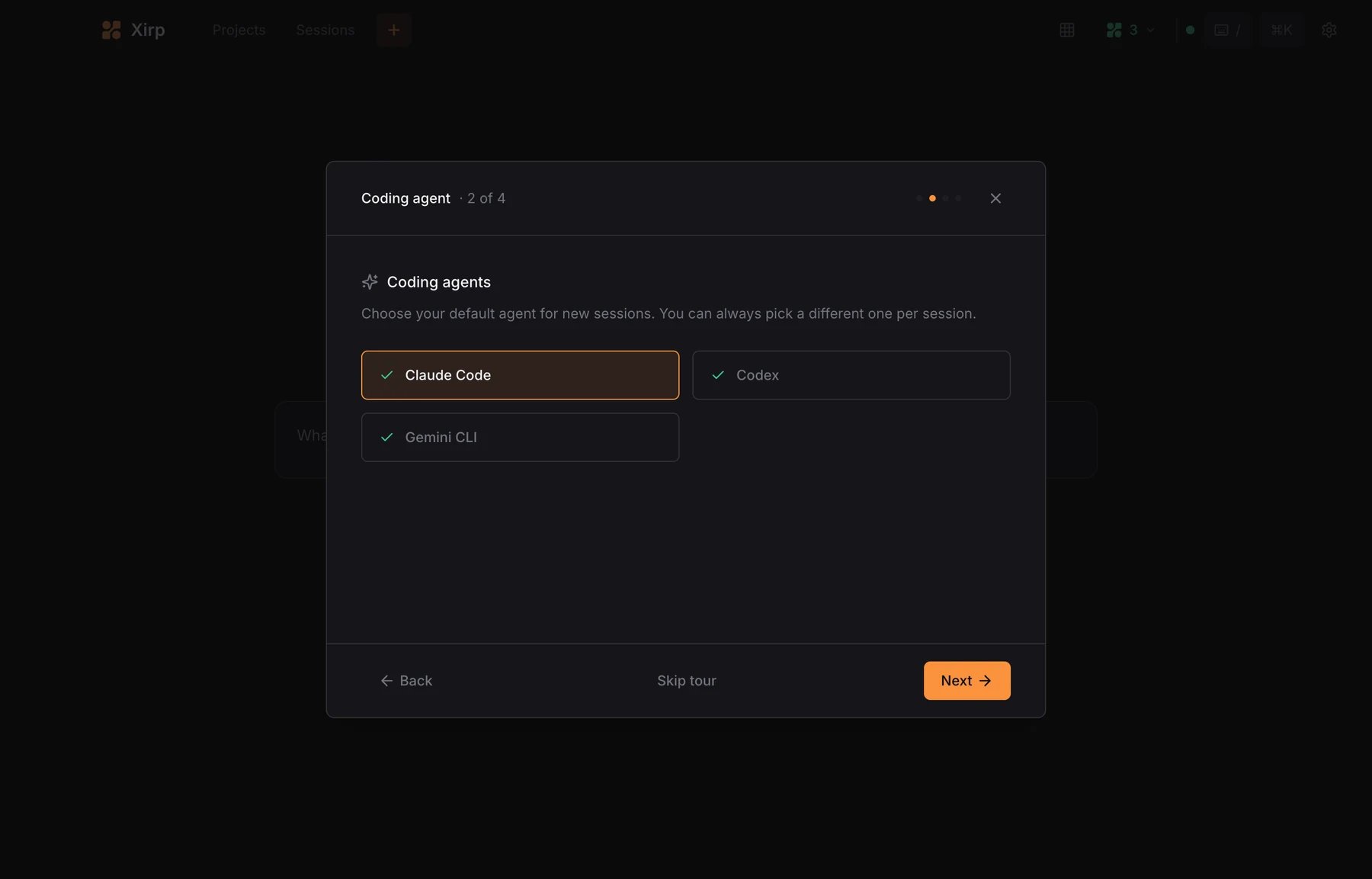
Step 4: Complete the welcome tour deliberately
Choose a default coding agent
Xirp presents the supported detected agents and lets you choose a default for new sessions. This is a convenience default, not a permanent project binding: the documented session form can choose another installed agent for an individual task.
Enable session hooks
Hooks allow Xirp to detect whether a session is Working, Idle, Waiting, Finished, or Failed. Those states drive badges and notifications. Spotify explicitly says enabling hooks does not grant the agent additional file or network permissions.
Choose the minimap layout
The minimap can appear at the top, left, or right. Pick the position that keeps session status visible without compressing the terminal. You can change it later in Settings.
Step 5: Add a project with the right boundary
- Open Projects.
- Choose Add Project.
- Enter the absolute local folder path.
- Optionally give it a clearer display name.
- Confirm whether Xirp recognizes one Git repository, a non-Git folder, or a parent containing several repositories.
Registering the folder does not upload it to Portal. A single Git repository provides the fullest experience: branch information, working-tree changes, commit history, diffs, and dedicated worktrees. If the task needs changes across several repositories, understand that the parent-folder mode trades some repository-level controls for a broader working directory.
Step 6: Write a goal that an operator can verify
Xirp sends the session goal to the selected agent as its initial prompt. A good goal contains four things:
- Outcome: the concrete state that should exist when the task is finished.
- Scope: repository, component, files, or subsystem in bounds.
- Constraints: tests, permissions, no-go areas, compatibility, or review requirements.
- Completion evidence: command output, test result, diff, screenshot, or documented blocker that lets you judge the outcome.
Example: “In the current repository, add validation for empty campaign names without changing unrelated form behavior. Run the existing unit tests, show the exact diff, and stop before committing.”
The prompt pattern is intentionally outcome-based. It is compatible with the structured delegation approach in my Codex subagent workflow guide, although Xirp sessions and Codex subagents are different orchestration mechanisms.
Step 7: Choose the main checkout or a new worktree
| Task | Safer starting choice | Why |
|---|---|---|
| Read-only investigation | Main checkout can be acceptable | No planned file writes, but native permissions still matter. |
| Small isolated change with no concurrent work | Worktree preferred | Keeps the main checkout clean and makes review/removal explicit. |
| Two or more sessions changing the same repository | One worktree per independent task | Prevents sessions from writing into the same working directory. |
| Task coupled to uncommitted main-checkout changes | Pause and decide deliberately | A new worktree will not automatically contain uncommitted local state. |
| High-risk experiment | Disposable worktree plus restrictive native permissions | Checkout isolation alone is not process, network, or secret isolation. |
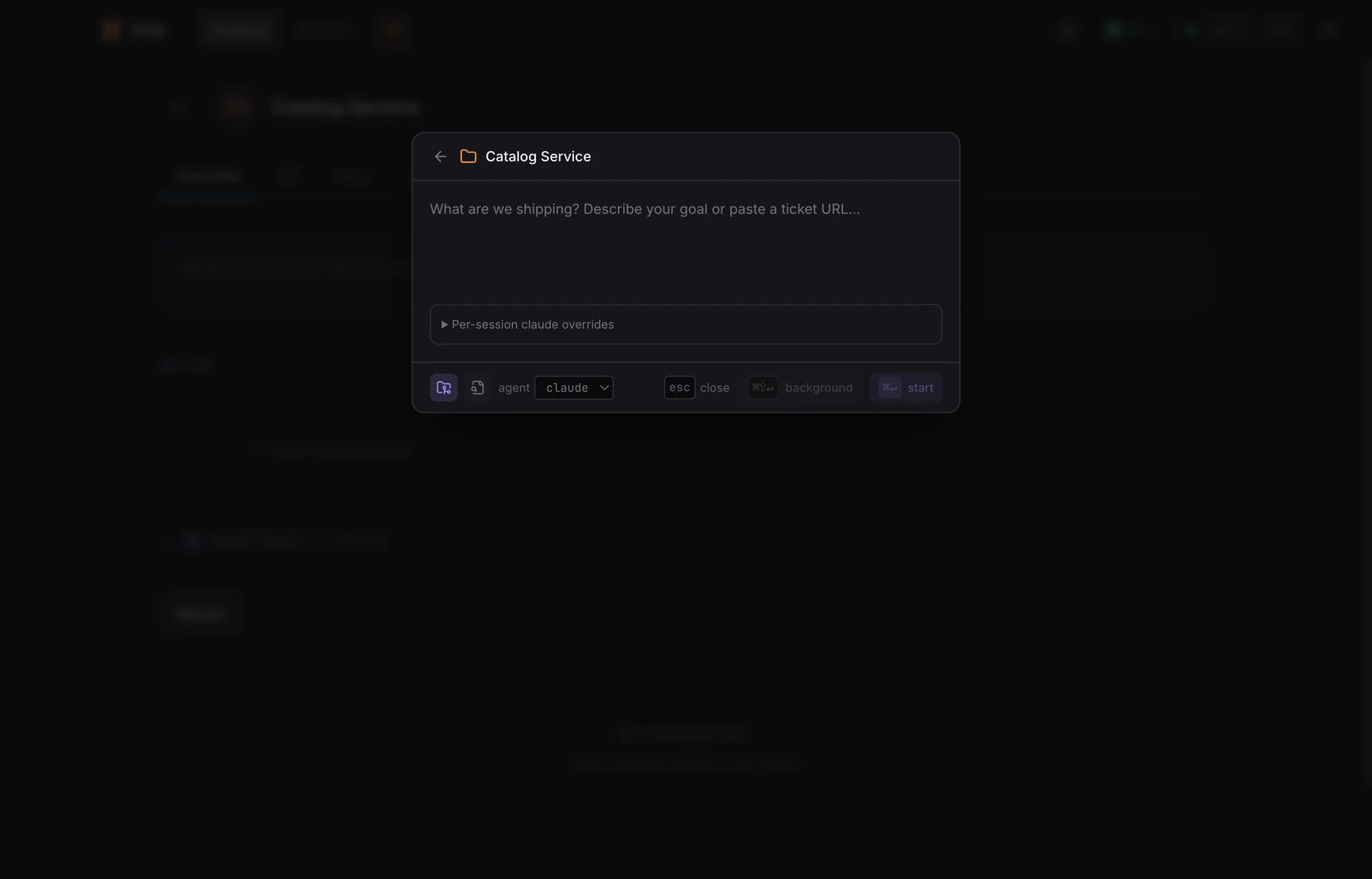
A session and a worktree have separate lifecycles. Closing a session does not delete its worktree. Deleting a worktree does not close the session. Before cleanup, inspect uncommitted changes and understand whether Xirp also proposes removing the branch.
Step 8: Start and operate the session
The session page is an interactive terminal. The documented toolbar can show the project, session, branch, context-window use, worktree, selected agent, and controls. You can type as you would in the native CLI, open the worktree in an external terminal or editor, browse files, review Git changes, fork a conversation, open a linked shell in the same worktree, or stop/close the session.
Xirp also documents changing to another installed coding agent during a session. Do not interpret that as a promise that provider-specific conversation state, hidden reasoning, tools, or permissions transfer perfectly. Record what context the new agent actually receives and restate the task boundary when switching.
Step 9: Monitor several sessions in grid view
Press Cmd+G to open grid view, then add sessions from the minimap. The public documentation says the grid can be resized, focused, maximized, grouped by theme, and filtered by project. Each pane remains interactive.
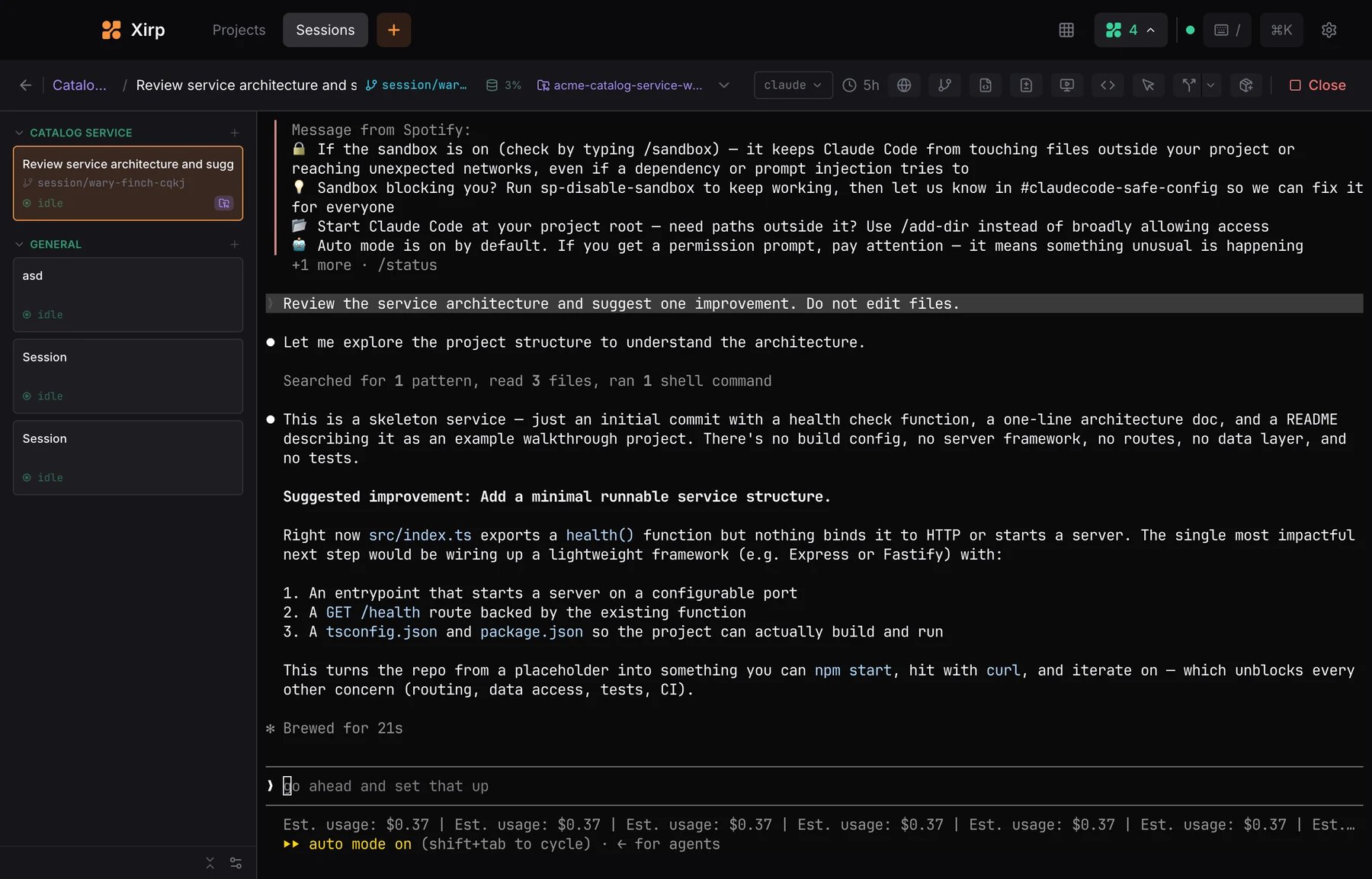
Use the grid as an attention dashboard, not as evidence that the tasks are coordinated. Give each session one owner, one outcome, one worktree, and one integration order. If you need the native Codex side of this workflow, my Codex operations guide covers how that agent environment behaves outside the Xirp layer.
Step 10: Review before commit or integration
- Read the session summary and unresolved warnings.
- Open the Git view and inspect every changed file.
- Check for unexpected generated files, credentials, configuration, or dependency changes.
- Run the repository’s documented tests and static checks.
- Verify the change against the original completion evidence.
- Commit or open a pull request only after the review passes.
- Integrate branches in a deliberate order when several worktrees touch related code.
The point of a persistent session is that evidence stays reachable while you review. It is not permission to accept a large diff because the agent appears confident. The context and rules design in my context-engineering guide is useful here: instructions help interpretation, while tests, permissions, and approval gates enforce non-negotiable outcomes.
Optional: connect Spotify Portal
Connect Portal when the task needs catalog-based repository discovery or shared Workspace context—not simply because the option exists. You can start the authorization from Portal’s Workspaces area or enter the full Portal URL inside Xirp. Both flows create the same connection. Xirp stores that authorization locally and refreshes it automatically.
A Workspace-launched session needs membership, at least one catalog component, and a source location that resolves to a repository. Connecting Portal does not grant Workspace membership. A transcript is uploaded only through an explicit action, and Xirp does not redact secrets, personal data, customer data, reasoning, file paths, or code excerpts automatically. Review before sharing.
Xirp troubleshooting matrix
| Symptom | Likely check | Safe next action |
|---|---|---|
| Xirp reports a missing tool | Check the exact tool named, such as tmux or gh | Use the tool’s official installer, then quit and reopen Xirp. |
| A coding agent is unavailable or will not start | Settings > Coding Agents; native CLI sign-in | Run the native CLI independently, repair its installation/authentication, restart Xirp. |
| Worktree options are missing | Project shape and Git detection | Use a project containing one Git repository; non-Git or multi-repository parents have limited controls. |
| Status or notifications do not update | Settings > Notifications > Session Events | Enable session hooks; this does not expand native agent permissions. |
| Portal upload is unavailable | Session origin, agent, Portal connection | Confirm it was launched from a Workspace, uses an eligible documented agent, and is connected to Portal. |
| A Workspace is missing | Portal membership | Ask a Workspace owner or Portal administrator to add the user/team. |
| Debug export is requested | Paths, repository names, diagnostics | Review and remove/avoid restricted information before sharing it with support. |
First-session checklist
- Mac and work-email beta eligibility confirmed.
- Supported native agent installed, authenticated, and tested outside Xirp.
- Non-sensitive single-repository project selected.
- Session hooks enabled; notifications configured intentionally.
- Goal includes outcome, scope, constraints, and completion evidence.
- New worktree selected for a write task.
- Native permissions and autonomous/bypass modes reviewed.
- Diff and tests required before commit.
- Portal disconnected unless organizational context is part of the test.
- Transcript upload treated as review-required and disabled by default.
- Cleanup includes both session and worktree/branch state.
Bottom line
Xirp can make parallel coding-agent work easier to see and separate, but the safety of the result still depends on task boundaries, native-agent permissions, worktree discipline, review, tests, and controlled integration. Start with one repository and one measurable outcome. Add more sessions only after the first workflow is repeatable; add Portal only when shared organizational context is the problem you are actually testing.